Modeling Bolts in ANSYS
The technique discussed below utilizes beam elements to represent a preloaded bolt.
In an assembled structure, modeling bolts as solid bodies usually results in computationally large models that can take a long time to solve.
It can be very efficient to model the bolts as line bodies rather than solid bodies, especially if tens or hundreds of bolts are present.
Preparing the Geometry
When using Beam Connections, we don’t need the geometries for bolts, washers or nuts. However, before deleting/suppressing these bodies, we should prepare geometry for analysis.
Imprint the face of the washer/bolt head/nut on the geometry. Although you could tie the vertex of the beam connection to the edge, it is more accurate to tie it to the area representing the region contacting the bolt head/washer/nut. The preload will be distributed on the finite area, which is more accurate.
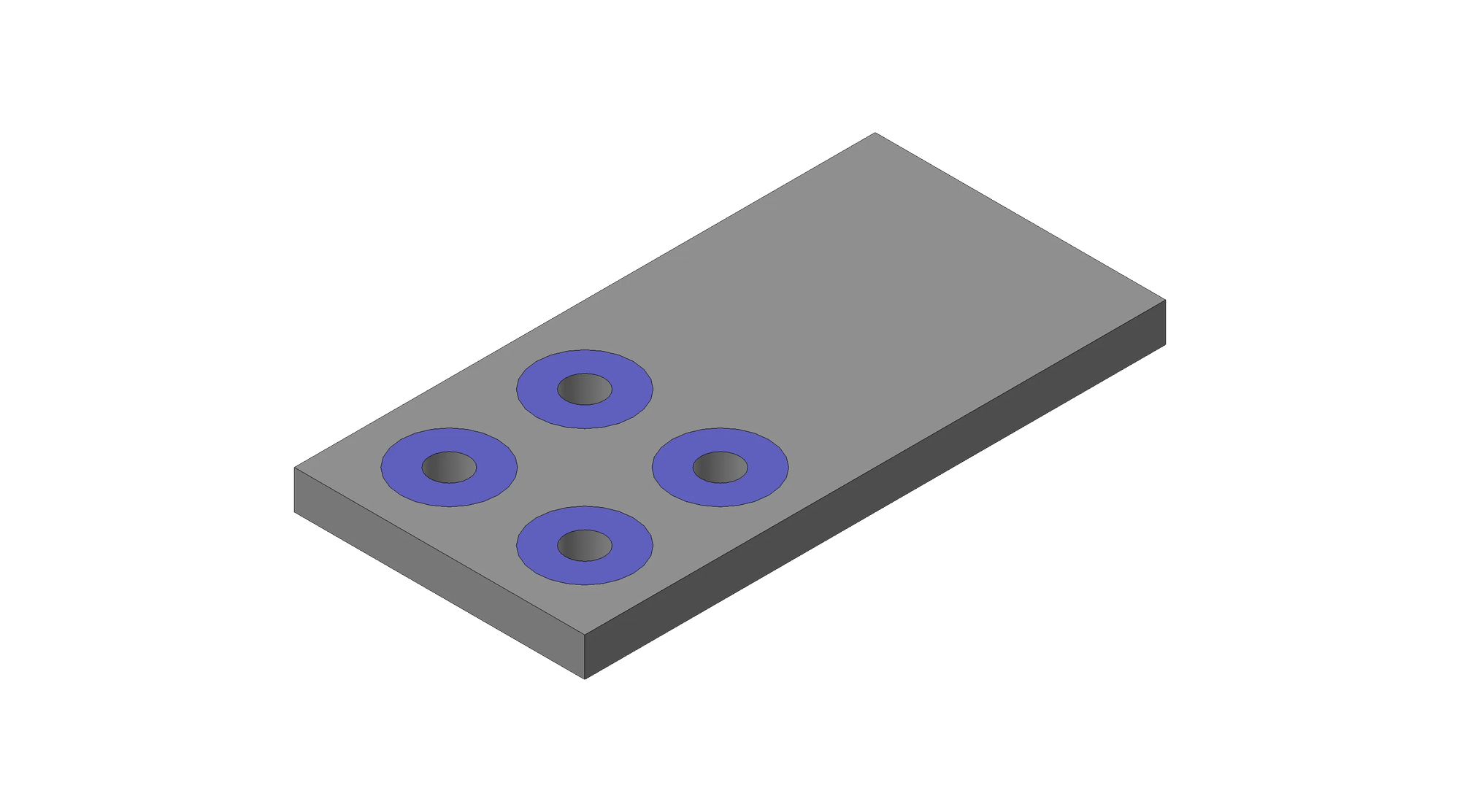
In Solidworks, the imprint can be created using the split line tool. Create a sketch of the washer on the applicable face. Then, using the split line tool, select the sketch and face in which you wish to imprint the washer.
See the video for how to use the split line tool.
Beam Connections for Bolts
Using beam connections to represent a bolt is a common practice. This method does not require a solid body geometry.
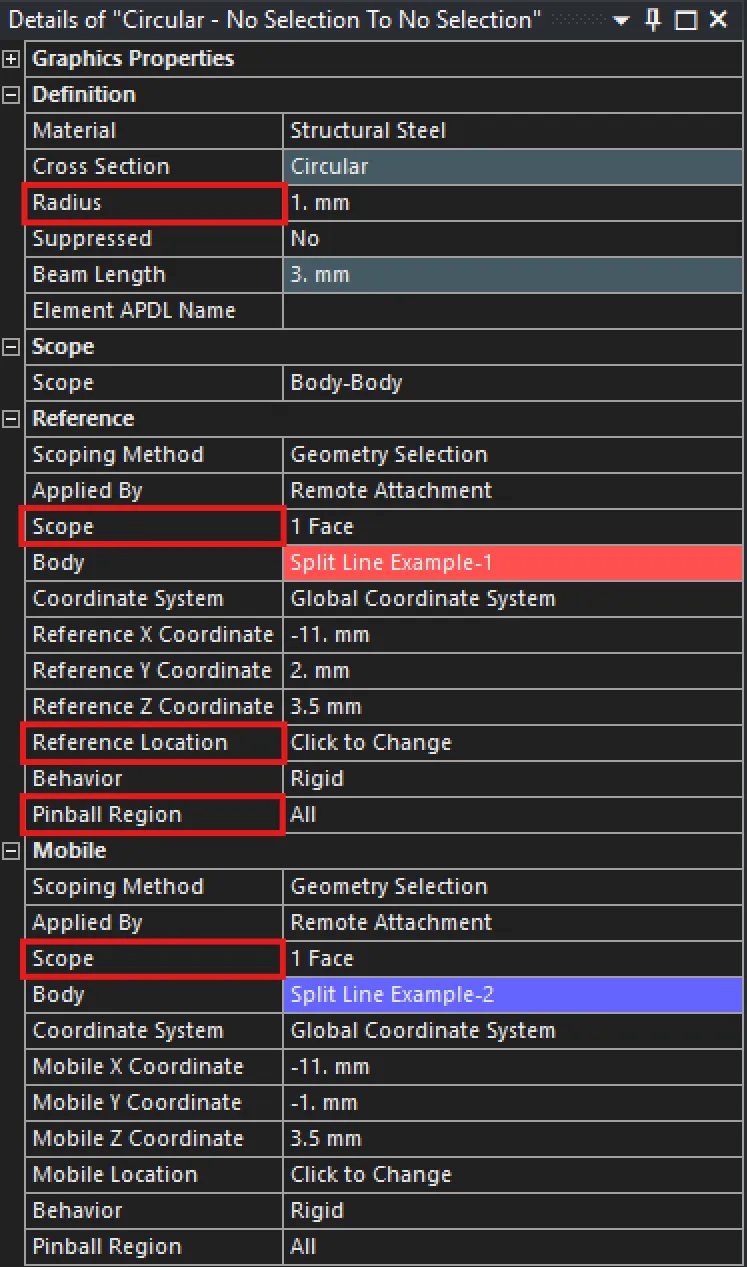
- To insert a beam element, right click on “Connections”. Then, hover over Insert and select Beam. It will bring up the properties menu shown on the right.
- Start by setting the radius of your bolt.
- Under the “Reference” section, the scope represents the face that the head of the bolt will contact. It does not need to be the washer face, it can be any surface.
- By default, the bolt will be placed at the center of the reference face. To redefine this position, define the “Reference Location” as the top edge of your hole.
- The “Pinball Region” represents a conceptual “sphere of influence” around contact or joint elements that defines a search area for interaction with other elements. You can define it as the diameter of your bolt head.
- The “Mobile” section, the scope represents the bottom constraint for the bolt. For a threaded hole, you will select the inner face. For a nut connection with a washer, you can select a predefined washed face or the bottom edge (making sure to then define your pin ball radius).
Below is a video showing how to establish a beam connection in more detail.
Setting Bolt Pretention
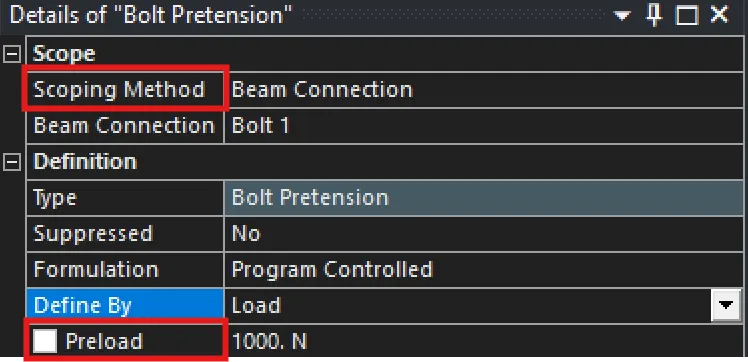
- Right clock on “Static Structural” and insert a Bolt Pretention.
- For bolts defined by beams, change the scoping method to beam connection.
- Next select a bolt, it is recommended to rename the beam elements to be unique.
- Lastly, define your preload.
Defining Load Steps
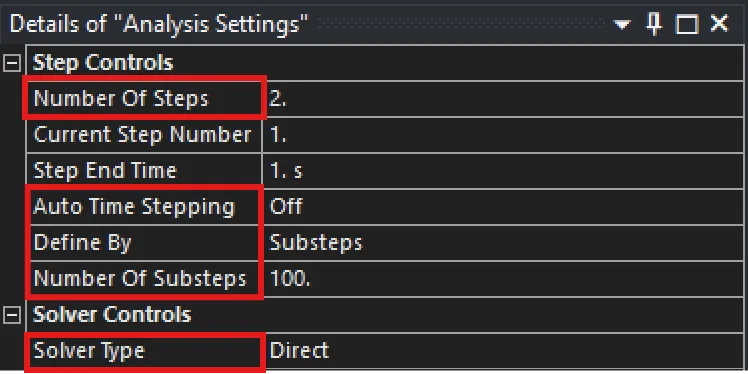
We want to apply our pretention and then apply our loads. If we do not define two separate steps here, ANSYS will apply everything simultaneously.
- Select Analysis Settings under Static Structural
- Change the number of steps to two.
- Set Auto Time Stepping to Off.
- Make sure Define By is set to Substeps.
- Enter 1 for the number of sub steps
- Change the Solver Type to Direct.
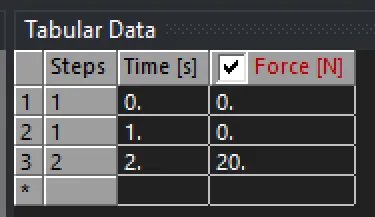
Now we want to define our two steps in out bolt pretension feature. We will do this by changing the tabular data for each feature, found in the bottom right of the window.

- In the newly create second step, change the “Define By” to be lock.
- Now in any applied loads, make sure they are set to zero for step one and only applied for step two.